# Install

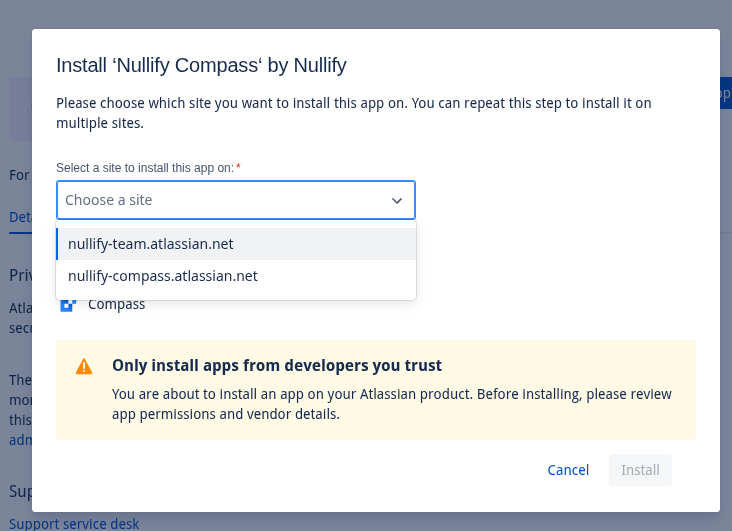
1. Go to this [link](https://developer.atlassian.com/console/install/2c924f15-2bd7-4f7e-87b1-20b736bc60f1?signature=AYABeF4qbo5gCtv3pvmSuuLMWbMAAAADAAdhd3Mta21zAEthcm46YXdzOmttczp1cy1lYXN0LTE6NzA5NTg3ODM1MjQzOmtleS83ZjcxNzcxZC02OWM4LTRlOWItYWU5Ny05MzJkMmNhZjM0NDIAuAECAQB4KVgoNesMySI2pXEz4J5S%2B4but%2FgpPvEEG0vL8V0Jz5cB0u63gC46FI0wZh3htjzUVgAAAH4wfAYJKoZIhvcNAQcGoG8wbQIBADBoBgkqhkiG9w0BBwEwHgYJYIZIAWUDBAEuMBEEDBlCH6X%2FMJmLWGy6fgIBEIA7M03IB9DaiEq1fUcy1xqZ5K4uC05dW0gSkxbaDJHhf6JjYyFgY4RSKe3mkNtPPqGSWgR%2BTOgmzALZS98AB2F3cy1rbXMAS2Fybjphd3M6a21zOmV1LXdlc3QtMTo3MDk1ODc4MzUyNDM6a2V5LzU1OWQ0NTE2LWE3OTEtNDdkZi1iYmVkLTAyNjFlODY4ZWE1YwC4AQICAHig7hOcRWe1S%2BcRRsjD9q0WpZcapmXa1oPX3jm4ao883gFS0PKKDOktYww9ayv8MXRWAAAAfjB8BgkqhkiG9w0BBwagbzBtAgEAMGgGCSqGSIb3DQEHATAeBglghkgBZQMEAS4wEQQMctPB9tM2067L2ITLAgEQgDv1wUhb71SOleiEc%2Bdu3QdsVirum82%2FeZbmmOSM9ZpaF6OHustWO86FTCNCZK4YzRwi1Mp4bsl2D6%2FqrQAHYXdzLWttcwBLYXJuOmF3czprbXM6dXMtd2VzdC0yOjcwOTU4NzgzNTI0MzprZXkvM2M0YjQzMzctYTQzOS00ZmNhLWEwZDItNDcyYzE2ZWRhZmRjALgBAgIAeBeusbAYURagY7RdQhCHwxFswh7l65V7cwKp%2BDc1WGoHAVeD4WPKUSxx1GuIUv4I4PkAAAB%2BMHwGCSqGSIb3DQEHBqBvMG0CAQAwaAYJKoZIhvcNAQcBMB4GCWCGSAFlAwQBLjARBAx%2F2hPnSPAv42O5itsCARCAO0QmQ4z3DXTV5SH99JL9L6WW%2BwhlCdGl6HiMApU9RLS%2FoHvAlA1r7zbrEUEJA%2F6Hi3uRyAcO7pQuvYZkAgAAAAAMAAAQAAAAAAAAAAAAAAAAAKrzfz6STvxxtiaf5pK%2Foy7%2F%2F%2F%2F%2FAAAAAQAAAAAAAAAAAAAAAQAAADL%2Fhj7wNYF%2Fh7YudFupwhdupFJpQtR1F01eoQ1u%2BSlO0clbGeHH4ikx5pQyrRgdaUlv%2BDfVgCv4afEOwtCxZJHfnf0%3D\&product=compass) to install the app and click the "Get App" button.

<figure><img src="/files/auioWQUv4HdrobsWd408" alt=""><figcaption><p>Install Listing</p></figcaption></figure>

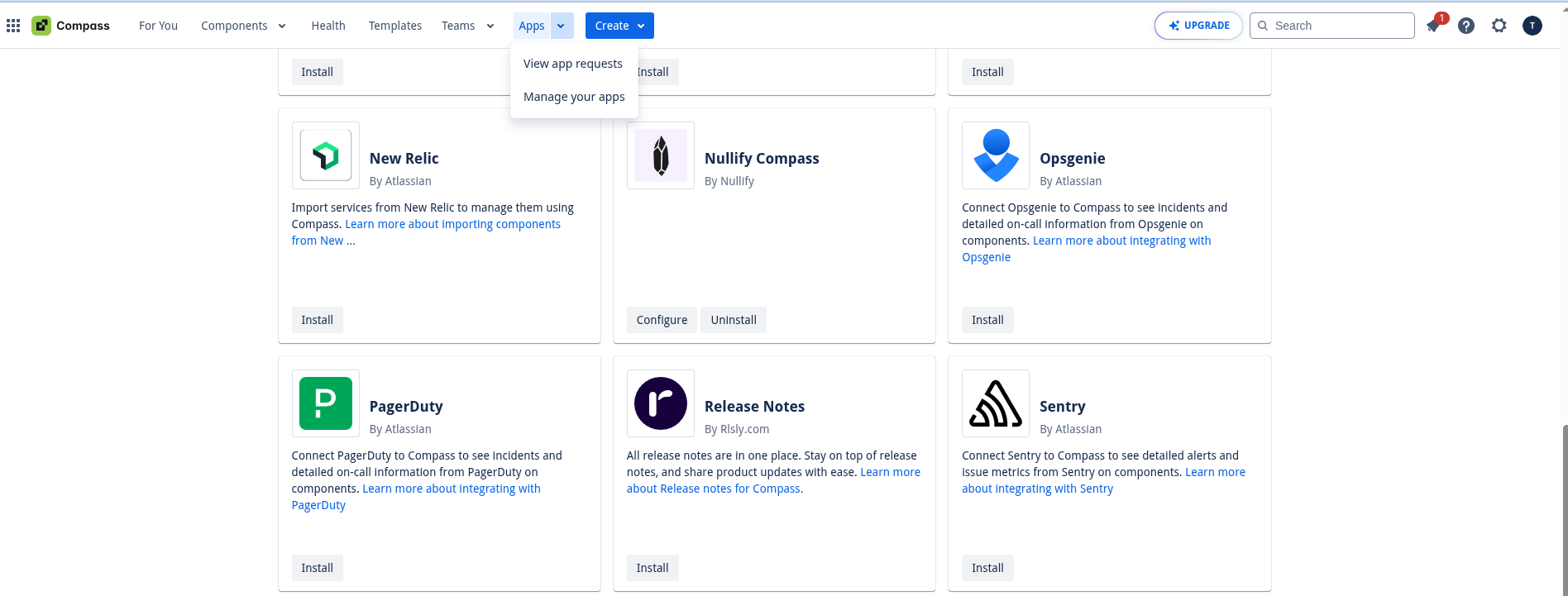
2. Select the compass organization you want to install the app into and click "Install"

<figure><img src="/files/9SwoXxvSvVAEFkie8mmC" alt=""><figcaption></figcaption></figure>

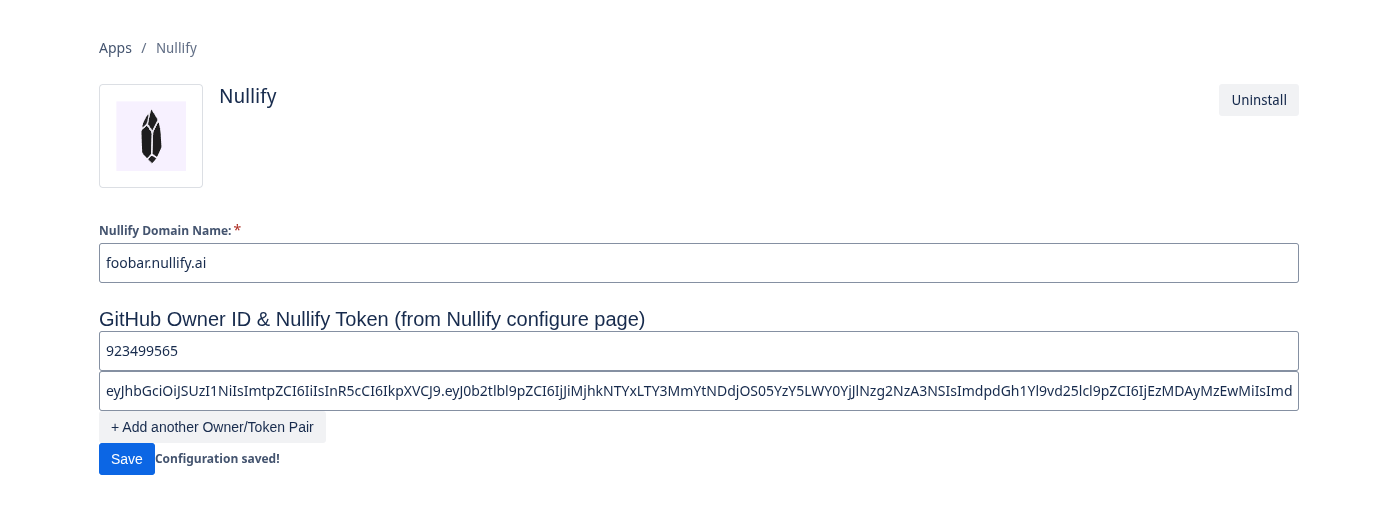
3. Go to your compass instance in the broser
4. In the menu bar at the top of the screen, click on the dropdown menu "Apps", and then click on "Manage your apps".
5. Find the "Nullify Compass" app and click "Configure"

<figure><img src="/files/y6DXtiA2wUEQcAwZKBSh" alt=""><figcaption><p>Manage Apps</p></figcaption></figure>

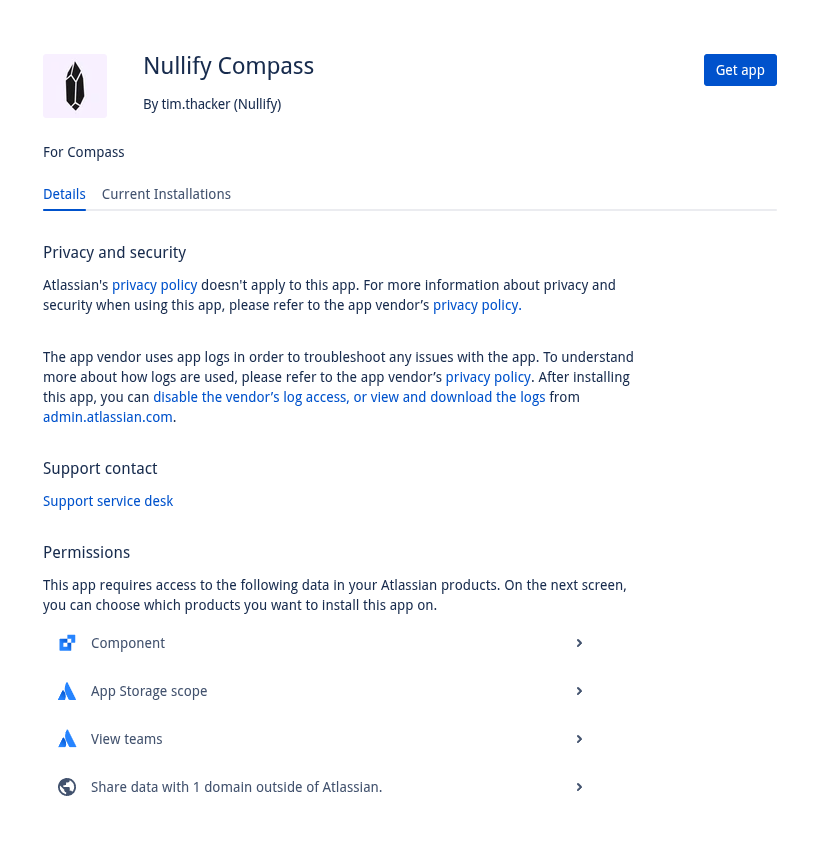
5. In another browser tab, go to your Nullify dashboard configure page e.g. `https://app.replaceme.nullify.ai/dashboard/configure/general`
6. Go to "Service Accounts", create a service account, copy the token and paste it into the compass app configuration
7. Copy the GitHub owner ID and paste it into the compass app configuration

<figure><img src="/files/PkPaLvnEP1wQ7qDGQJU1" alt=""><figcaption><p>Configure App</p></figcaption></figure>

8. Save the compass app settings

After all of the steps are completed, your compass data will be synced with Nullify periodically.

---

# Agent Instructions: Querying This Documentation

If you need additional information that is not directly available in this page, you can query the documentation dynamically by asking a question.

Perform an HTTP GET request on the current page URL with the `ask` query parameter:

```
GET https://docs.nullify.ai/connectors/compass/install.md?ask=<question>
```

The question should be specific, self-contained, and written in natural language.
The response will contain a direct answer to the question and relevant excerpts and sources from the documentation.

Use this mechanism when the answer is not explicitly present in the current page, you need clarification or additional context, or you want to retrieve related documentation sections.